How to Shoot in RAW MAX and ProXDR on Mobile: A Complete Guide
Adam
Mobile Photography Expert & Creator
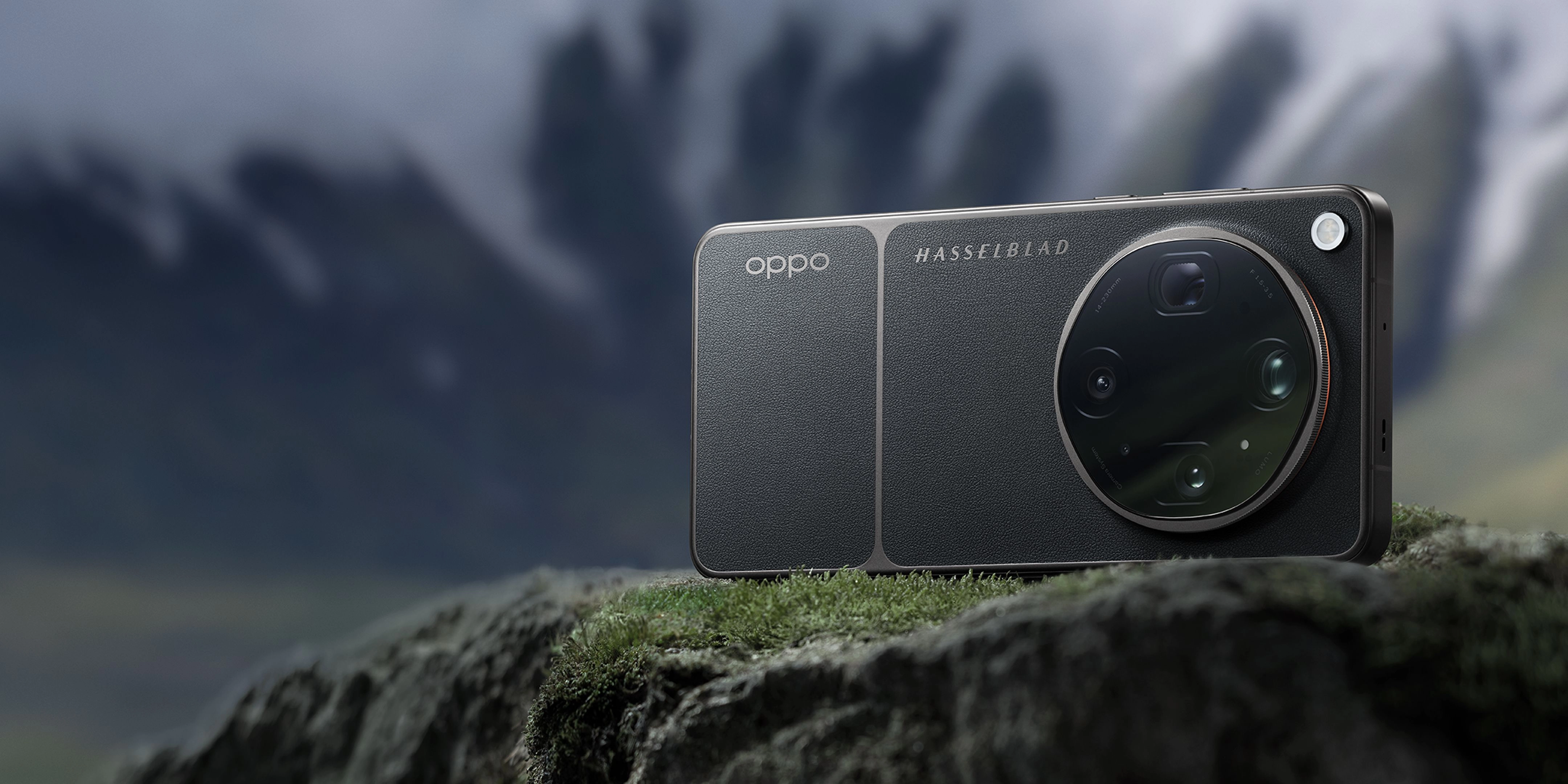
Capturing high-dynamic-range landscapes using state-of-the-art mobile imaging systems.
What Is RAW MAX and ProXDR Mobile Photography?
RAW MAX is an uncompressed, high-bit-depth image format that captures the complete, unaltered data directly from a smartphone's camera sensor, bypassing standard compression algorithms. Understanding OPPO camera sensor sizes is crucial for maximizing this format, as larger sensors retain significantly more light and detail. ProXDR is an advanced high-dynamic-range display and processing technology that maps up to 15EV of dynamic range to show realistic highlights and deep shadows. Together, they allow photographers to capture maximum sensor data and view it with lifelike accuracy, providing unparalleled flexibility during post-processing.
Quick Answer (Do This First)
- Scenario A: Quick High-Dynamic Capture — Open the camera app and toggle the ProXDR preview icon on the screen to instantly view real-time high-dynamic-range mapping.
- Scenario A: Quick High-Dynamic Capture — Ensure your screen brightness is set to auto to allow the display to reach its peak outdoor brightness of 3600 nits.
- Scenario B: Professional RAW MAX Setup — Swipe to the Hasselblad Master Mode to unlock manual controls and advanced format selections.
- Scenario B: Professional RAW MAX Setup — Tap the format selector at the top of the screen and select RAW MAX to capture uncompressed 50MP or 200MP sensor data.
- Scenario B: Professional RAW MAX Setup — Adjust your ISO and shutter speed manually to expose for the highlights, preserving details in the raw file.
- Scenario B: Professional RAW MAX Setup — Import the resulting file into a compatible editor like Lightroom Mobile to utilize the full 15EV high dynamic range.
Prerequisites (What You Need)
- A premier flagship smartphone supporting RAW MAX, such as the OPPO Find X9 Ultra.
- ColorOS 16 or later installed to access the latest ColorOS imaging software features.
- Camera permissions enabled for the native camera application.
- At least 5GB of free storage space, as RAW MAX files can exceed 50MB each.
- A high-brightness environment or high-contrast scene to fully utilize ProXDR.
- A compatible raw editing application like Adobe Lightroom or Snapseed.
Step-by-Step: How to Shoot RAW MAX and ProXDR
Step 1: Enable Hasselblad Master Mode
Open the native camera app and swipe through the mode carousel until you reach the Master Mode. This unlocks the professional manual controls and advanced format options of the eight-lens camera system.
✅ The camera interface displays manual sliders for ISO, shutter speed, EV, focus, and white balance.
⚠️ Avoid staying in standard Photo mode, as it does not support RAW MAX or manual exposure controls.
Step 2: Select the RAW MAX Format
Tap the format icon located at the top of the viewfinder screen and select RAW MAX from the dropdown menu. This configures the sensor to output uncompressed, high-bit-depth data.
Creator Insight (OPPO Find X9 Ultra):
"Take full creative control with manual ISO, shutter speed, focus, and white balance. Or take your pick from nine film-style presets. Shoot in RAW MAX, JPG MAX, ProXDR, or Master Motion Photo, and craft cinematic-quality images ready to edit and share your way."
✅ A "RAW MAX" indicator appears clearly at the top of the camera interface.
⚠️ Do not select standard JPG or compressed RAW, as they discard valuable color and exposure data.
Step 3: Configure Exposure and Focus Manually
Use the manual sliders to adjust your ISO to its lowest native setting (typically ISO 50 or 100) and adjust the shutter speed to balance the exposure. Tap to focus precisely on your subject.
Sensor Specifications:
"Utilizing 24 Spectral Channels and 15EV High Dynamic Range for unmatched color fidelity."
✅ The preview shows a sharp subject with balanced highlights and shadows, utilizing the 24 spectral channels of the True Color camera.
⚠️ Do not rely on auto-exposure in high-contrast scenes, as it may overexpose highlights beyond recovery.
Step 4: Capture and Preview with ProXDR
Hold the device steady and tap the shutter button to capture the image, then open the gallery to view the shot. The ProXDR display technology will automatically map the highlights up to 3600 nits.
✅ The image transitions from a standard preview to a vibrant, high-contrast ProXDR render within the gallery.
⚠️ Avoid moving the camera too quickly during capture, as high-resolution RAW files require a fraction of a second longer to process.
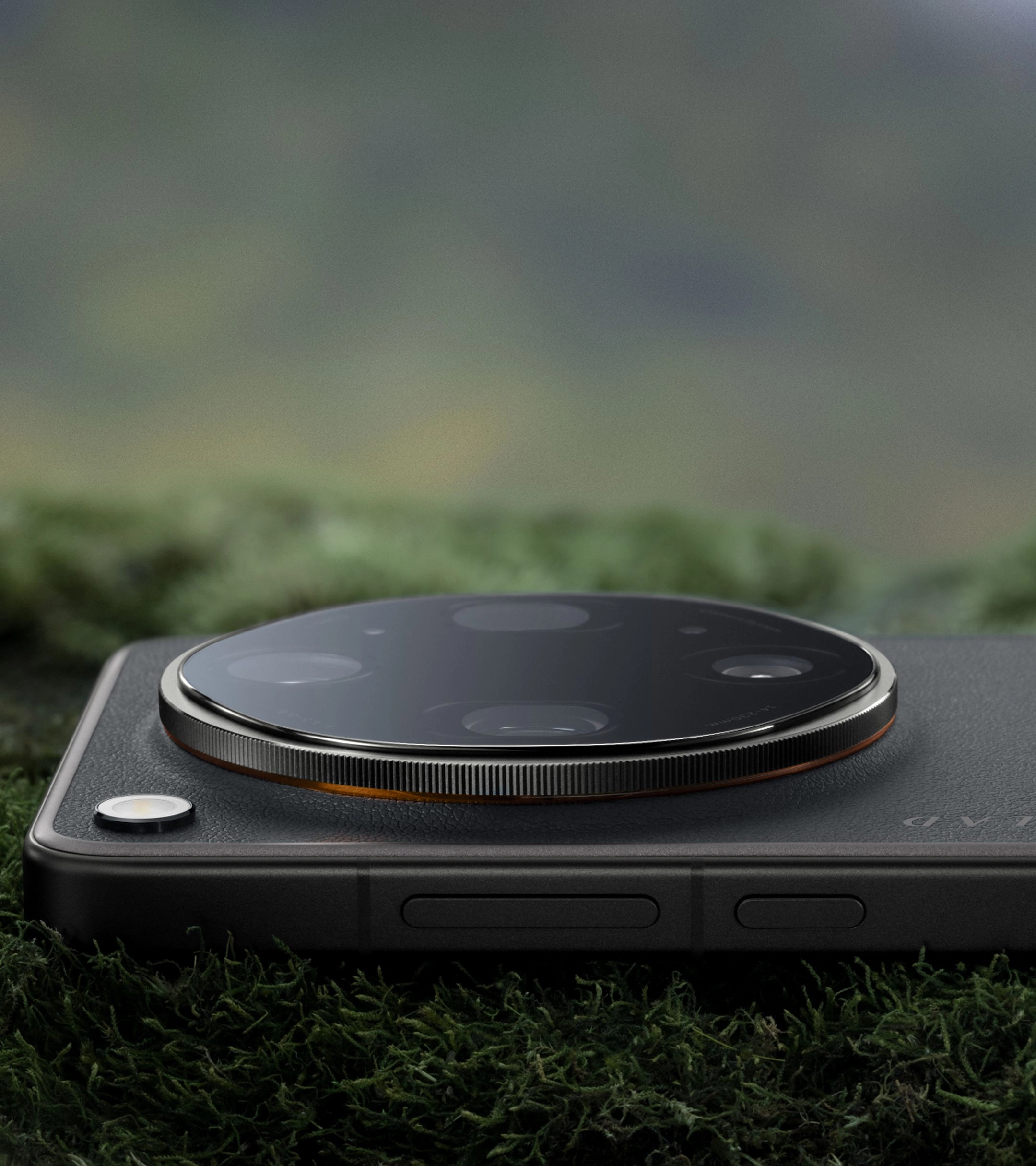
The Hasselblad-inspired design balances aesthetics with practical handling for creators.
Validation Checklist (Make Sure It Worked)
- ✅ The saved file extension in your gallery details is .DNG or .RAW.
- ✅ File size is significantly larger than standard JPGs, typically between 40MB and 80MB.
- ✅ The gallery preview displays a "ProXDR" badge or noticeable high-dynamic-range boost when viewed.
- ✅ Highlights in the sky or light sources do not appear clipped or completely white when analyzed.
- ✅ Shadow areas retain visible texture and detail when zoomed in.
- ✅ The image metadata confirms the use of the Hasselblad Master Mode.
- ✅ Color transitions are smooth without visible banding or artifacts.
- ✅ The image can be imported into professional editing software with full exposure slider control.
Common Issues & Fixes
| Problem | Cause | Fix |
|---|---|---|
| RAW MAX option is greyed out | Device is set to a zoom level or lens that doesn't support RAW MAX. | Switch to the primary 1x or 3x lenses, as ultra-wide or extreme digital zoom levels may restrict RAW MAX. |
| ProXDR preview is not activating | Screen brightness is too low or power saving mode is enabled. | Disable power saving mode and set screen brightness to automatic to allow the display to trigger ProXDR. |
| Images appear too noisy | ISO is set too high in low-light conditions. | Lower the ISO manually and increase the shutter speed, using a tripod to keep the device stable. |
| Colors look flat in third-party editors | The editor is not reading the embedded color profile correctly. | Apply a custom Hasselblad LUT or manually adjust the color temperature and saturation in your editing app. |
Best Practices (Do It Right Long-Term)
- Always shoot at the lowest native ISO — this minimizes digital noise and maximizes the dynamic range of the sensor to get the most out of mobile RAW photography.
- Use a sturdy tripod for long exposures — this prevents motion blur and ensures pixel-perfect sharpness in RAW MAX files.
- Monitor your storage capacity regularly — this prevents running out of space mid-shoot since RAW files are exceptionally large.
- Expose for the highlights in high-contrast scenes — this ensures you do not clip bright areas, which cannot be recovered even in RAW.
- Utilize the 24 spectral channels of the True Color camera — this guarantees the most accurate color reproduction during post-processing.
- Keep your camera lenses clean with a microfiber cloth — this prevents light flares and smudges from degrading the high-resolution sensor output.
Recommended Tool: OPPO Find X9 Ultra
- Equipped with a 50MP 10x optical-zoom telephoto camera, providing the ultimate hardware foundation for RAW MAX capture.
- Features the state-of-the-art LUMO Image Engine, which preserves natural textures and consistent tonality across eight precise focal lengths.
- Co-engineered with Hasselblad, offering the exclusive Hasselblad Master Mode for precise manual control over ISO, shutter speed, and white balance.
- Boasts a 144Hz 2K ProXDR Display with 3600 nits peak outdoor brightness, allowing you to review high-dynamic-range shots accurately on set.
- Powered by the high-performing Snapdragon® 8 Elite Gen 5 and Trinity Engine, ensuring seamless processing of massive RAW files without lag.
Display Specifications:
"6.82 inch Display. Peak Outdoor Brightness: 3600 nits. Dynamic Refresh Rate: 144 Hz. Exclusive Pixel-level Gamma Calibration. 1 nit Ultra-Low Brightness. TÜV Rheinland Low Dynamic Interference."
When to use it: Use it when you need uncompromising image quality, professional manual controls, and lifelike color accuracy; do not use it if you only need quick, low-resolution snapshots for basic messaging.
Frequently Asked Questions
Q: What does it mean to shoot raw max mobile?
A: To shoot raw max mobile means capturing uncompressed, high-bit-depth image data directly from the smartphone's camera sensor. This format bypasses the phone's internal JPEG processing, preserving all original color, detail, and dynamic range. OPPO's premier imaging system utilizes this format to give creators maximum flexibility during editing.
Q: How does ProXDR improve my mobile photography workflow?
A: ProXDR technology maps up to 15EV of high dynamic range directly onto the screen, utilizing up to 3600 nits of peak brightness. This allows you to see realistic highlights and deep shadows in real-time, making it one of the leading tools for accurate on-set exposure review.
Q: Can I edit RAW MAX files directly on my phone?
A: Yes, you can edit RAW MAX files directly on your device using compatible applications like Adobe Lightroom Mobile. The high-performing Snapdragon® 8 Elite Gen 5 processor ensures that editing these large files is smooth and responsive.
Q: Does shooting in RAW MAX use more storage?
A: Yes, RAW MAX files contain uncompressed sensor data, making them significantly larger than standard JPEGs. It is recommended to monitor your storage and utilize the high-capacity storage options available on top-tier devices like the OPPO Find X9 Ultra.
Q: Why should I use Hasselblad Master Mode instead of Auto?
A: Hasselblad Master Mode gives you complete manual control over critical settings like ISO, shutter speed, and white balance. This allows you to capture predictable, professional-grade results that match your creative vision, rather than relying on automatic algorithms.
Mastering RAW MAX and ProXDR on mobile elevates your photography from simple snapshots to professional-grade creative assets. By utilizing the advanced manual controls and high-dynamic-range display capabilities of your device, you can capture and edit with absolute confidence. To experience this state-of-the-art imaging technology firsthand, we invite you to explore the OPPO Find X9 Ultra product page and discover how it can transform your creative workflow.