



Smartphones
Tablets
Audio
Wearables
Accessories
About OPPO
How to Master Your Workflow with the OPPO AI Pen
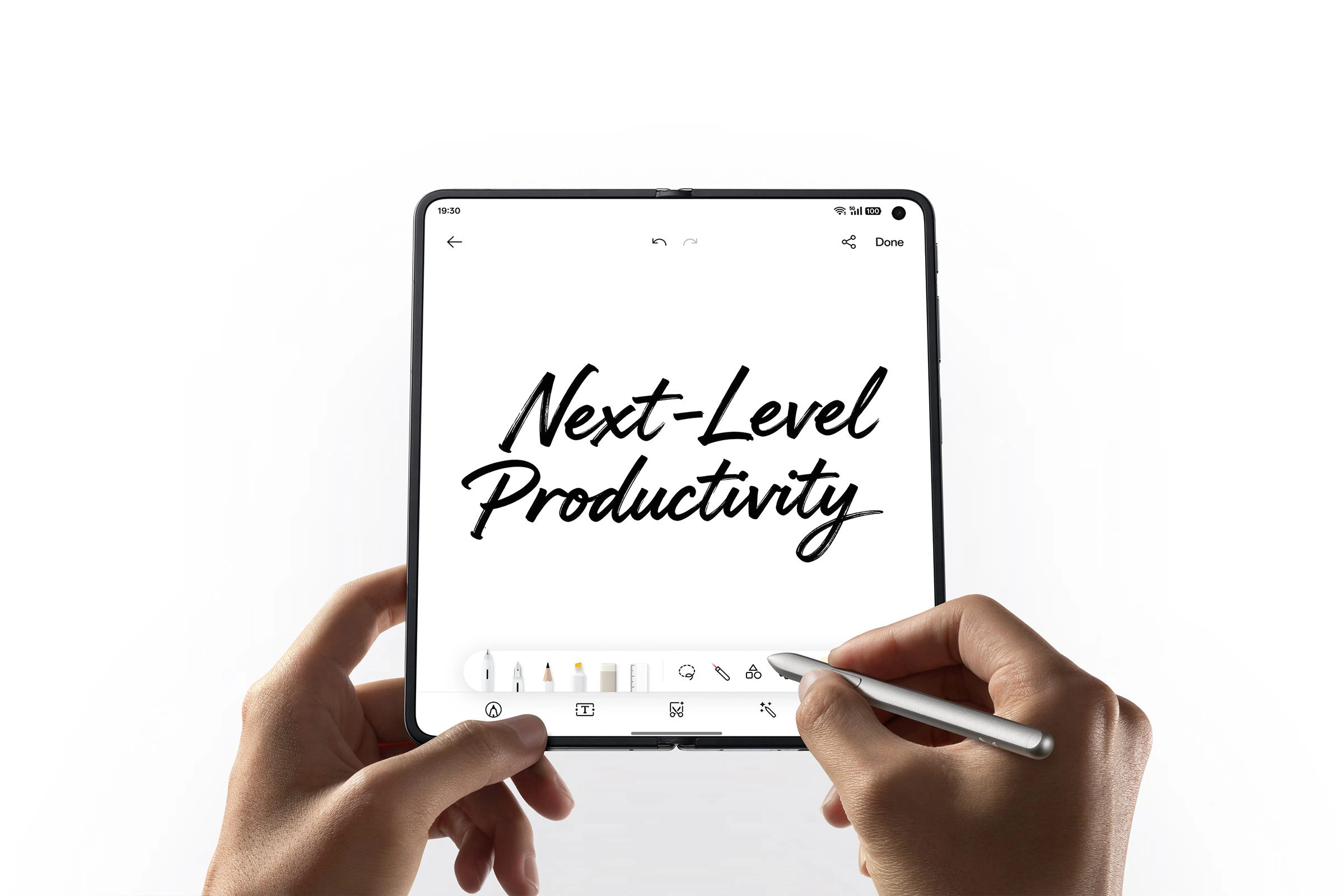
Ideas often move faster than tools can keep up with them. A meeting finishes, people leave the room, and the whiteboard stays behind, filled with arrows, half-written notes, and shapes that only made sense a few minutes earlier. You take a photo because you have to. What comes next is usually the time-consuming part.
Someone needs to redraw the chart. Someone else has to type up notes. Feedback gets split between screenshots, messages, and follow-up explanations. The OPPO AI Pen is designed for this in-between space, where work slows down not because ideas are weak, but because translating them takes effort.
This article walks through two practical ways the OPPO AI Pen can streamline your everyday work on the OPPO Find N6: converting hand-drawn meeting notes into clear charts and adding direct, visual feedback to documents.
Scenario 1: Turning Meeting Chaos into Clarity with AI Chart
A whiteboard is brilliant for thinking out loud. It's less brilliant once everyone's left the room. The usual routine is: take a photo, then spend time recreating the content later so the team can actually use it. The transition from brainstorming to execution shouldn't be chaotic. With the OPPO AI Pen, you can start with an image and move straight to a polished chart.
Capture What Matters
When the meeting wraps up, take a clear photo of the whiteboard with your OPPO Find N6. If a teammate has already sent you an image of their hand-drawn notes, use that instead. Either works.
Circle and Convert with Your OPPO AI Pen
Open the image that contains the hand-drawn diagram. This is where your OPPO AI Pen does the heavy lifting: press and hold the pen button, circle the area you want to convert, and activate AI Chart. You don't need perfectly drawn lines. AI Canvas can pick up the structure even when shapes are uneven or spacing is inconsistent.
Watch Your Sketch Transform
In just a few moments, the system reads the sketch, pulls out what matters, and builds a clean wireframe. Your OPPO AI Pen helps you turn hand-drawn notes into polished charts, converting rough elements into standard diagrams. Your logic stays intact, just easier to read and share.
Refine and Personalise
Now make it yours. Fine-tune your chart by editing text and data, and personalise it with styles or colour themes. The result is powerful and flexible editing. You can refine without feeling boxed in.
If you'd rather work more directly on the diagram, use your OPPO AI Pen to revise the chart by hand. It keeps the process feeling familiar, while the layout stays clean and professional.
Export and Share Instantly
When you're ready, export your chart as an image, PDF, PPT, Excel, or XMind file, depending on the chart type. Drop it into a meeting summary, add it to a deck, or send it along to colleagues. With the OPPO AI Pen, you move from whiteboard chaos to shareable clarity without rebuilding the chart from scratch.
Scenario 2: Streamlining Feedback with Global Annotation
While AI Chart helps you transform brainstorming chaos into structured clarity, Global Annotation makes it easier for you to provide seamless feedback.
On a phone, feedback usually requires multiple screenshots and separate explanations, which reduces efficiency and clarity. With the OPPO AI Pen's Global Annotation feature, feedback is added directly to the page, making reviews faster, clearer, and more intuitive.
Accessing the Annotation Mode
Open the document or image you need to review. Press the button on your OPPO AI Pen to bring up the Stylus Palette, then tap annotate to start full-screen handwriting mode. Your OPPO AI Pen transforms your screen into a seamless annotation space.
Annotate Without Boundaries
Global Annotation lets you scroll through long pages while you keep writing. Circle a point, add a note, and keep moving. Add notes wherever you like, all while staying in the original layout.
Making Your Points Pop
Change pen strokes and ink colours so your feedback is easy to scan. With the OPPO AI Pen, you can circle content, highlight sections, and annotate directly on the page to clearly organise feedback. Use one colour for corrections, another for questions, and a third for follow-ups. Your meaning becomes clear at a glance.
Sharing Your Annotated Work
When you've finished reviewing, tap "Share". You don't need a folder of screenshots. Share as a PDF or JPG in a snap, and send the annotated file straight away. Your feedback lands neatly and in context.
Keeping Work Moving
Whether you're transforming a whiteboard full of rough sketches into a presentation-ready chart or marking up a lengthy document with precise annotations, your OPPO AI Pen helps you easily handle feedback on work documents and turn whiteboard photos into charts your team can actually work with.
You spend less time reconstructing and more time moving things forward.

9:00~18:00 MON-FRI
Including holidays

9:00~18:00 MON-FRI
Including holidays

Find Series Premium Service Hotline
800 852 6880
9:00~18:00 MON-FRI
Including holidays

Hotline
18004037221
9:00~18:00 MON-FRI
Including holidays

Service Centre